
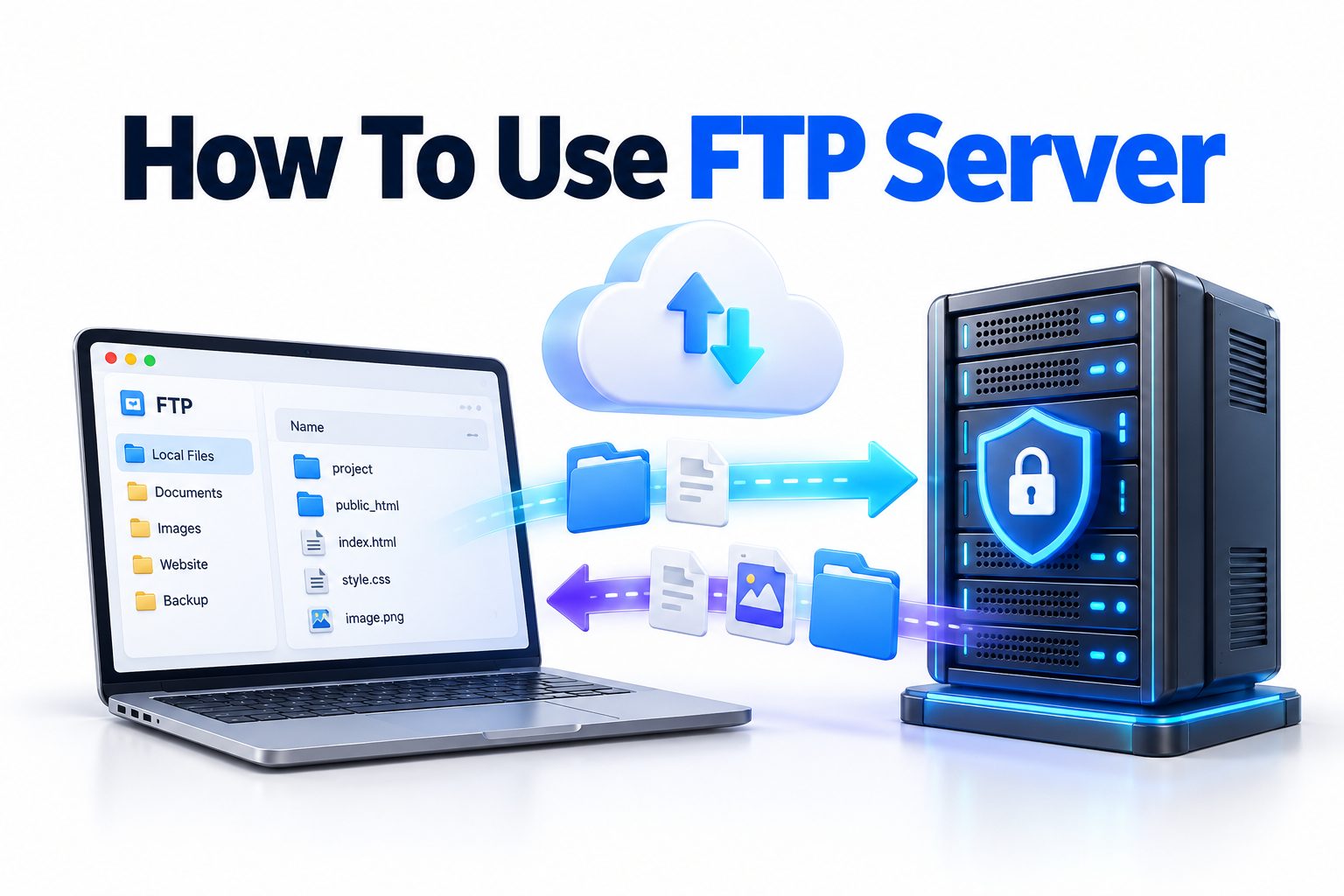
Using an FTP server is a practical way to upload, download, organize, and share files between computers over a network. To learn how to use FTP server access, you need three basic details: the server address, your login credentials, and an FTP client such as FileZilla, WinSCP, Cyberduck, or a command-line tool. Once connected, you can work with remote files much like you would manage folders on your own computer.
The exact process depends on the server’s security protocol. Traditional FTP transfers data without encryption, while FTPS adds TLS encryption and SFTP operates through SSH. Choosing the right protocol matters because many hosting companies and organizations now disable standard FTP for security reasons.
This article walks you through selecting an FTP client, entering connection details, transferring files, managing permissions, and solving common connection problems. It also explains the differences between FTP, FTPS, and SFTP so you can use the method your server supports without exposing passwords or sensitive data.
What an FTP Server Does
An FTP server is a computer or software service that stores files and accepts connections using the File Transfer Protocol. Authorized users can connect from another device to download existing files, upload new ones, create directories, rename items, or remove files, depending on their account permissions.
FTP servers are commonly used for website maintenance, scheduled data exchanges, internal document distribution, and access to archives. A web developer, for example, might upload images and application files to a hosting account. A company might use an automated FTP process to exchange reports with a business partner.
How FTP Connections Work
An FTP session involves a client and a server. The client starts the connection using a hostname or IP address, and the server requests authentication. After the login succeeds, the server displays the files and folders that the account is allowed to access.
FTP uses separate connections for commands and file data. This design can cause problems with firewalls and routers, particularly in active mode. Most modern FTP clients use passive mode by default because it works more reliably when the user is behind a home router, corporate firewall, or network address translation system.
Key Details Required Before Connecting
Collect the following information from your hosting
- Server hostname, such as ftp.example.com
- Username assigned to the FTP account
- Password or SSH private key
- Supported protocol: FTP, FTPS, or SFTP
- Port number, if it differs from the standard
- Remote directory where files should be placed
- Any IP restrictions or VPN requirements
- Expected file and folder permissions
Do not assume that a website domain is automatically the correct FTP hostname. Hosting dashboards often provide a specific server name, and using it may also prevent TLS certificate warnings.
Choosing Between FTP, FTPS, and SFTP
FTP, FTPS, and SFTP all transfer files, but they do not provide the same security or use the same underlying technology. Plain FTP sends login credentials and file contents without encryption, which makes it unsuitable for sensitive transfers over public or untrusted networks.
FTPS is FTP protected by TLS, similar to the encryption used by HTTPS websites. SFTP is the SSH File Transfer Protocol and runs through an SSH connection. Despite the similar name, SFTP is not FTP with an extra security option; it is a separate protocol.
FTP Protocol Comparison
| Protocol | Standard port | Encryption | Authentication | Typical use |
|—|—:|—|—|—|
| FTP | 21 | None | Username and password | Legacy systems and trusted isolated networks |
| Explicit FTPS | 21 | TLS added after connection | Username, password, or certificate | Hosting and systems requiring FTP compatibility |
| Implicit FTPS | 990 | TLS begins immediately | Username, password, or certificate | Older configurations with dedicated secure ports |
| SFTP | 22 | SSH encryption | Password or SSH key | Secure administration, hosting, and automated transfers |
Use SFTP or FTPS whenever the server offers it. Plain FTP may still be required for a legacy device or private network, but it should not be used to send credentials or confidential information across the public internet.
Installing and Configuring an FTP Client
A graphical FTP client is usually the easiest option because it displays local files and server files side by side. FileZilla works on Windows, macOS, and Linux. WinSCP is a strong Windows option, while Cyberduck supports Windows and macOS. Your organization may recommend a specific client.
Download software only from the developer’s official website or a trusted package repository. During installation, review optional components instead of accepting every default prompt. Updates are also important because FTP clients handle passwords, network connections, encryption, and potentially untrusted filenames.
Creating a Saved Server Profile
Most clients include a site manager, bookmark, or connection profile. Create a profile rather than typing credentials into a quick-connect bar every time. A saved entry reduces typing errors and lets you specify the correct protocol, port, remote directory, and transfer settings.
Give the profile a descriptive name such as “Production Website SFTP” or “Supplier Reports FTPS.” Avoid saving the password on a shared computer. When password storage is necessary, use the operating system’s credential manager or the client’s protected storage instead of a plain-text document.
Connecting to an FTP Server Step by Step
The labels vary between applications, but the required settings are similar. Before connecting, confirm that you are using the protocol supplied by the administrator. Selecting FTP when the server expects SFTP will fail even if the username and password are correct.
Follow these steps in a graphical FTP client:
1. Open the client’s site manager or connection window.
2. Create a new server entry and give it a recognizable name.
3. Select FTP, explicit FTPS, implicit FTPS, or SFTP as instructed.
4. Enter the hostname without adding a web page path. For example, use ftp.example.com rather than https://example.com/account.
5. Enter the port. Common defaults are 21 for FTP and explicit FTPS, 990 for implicit FTPS, and 22 for SFTP.
6. Choose the login method, then enter the username and password or select the required SSH private key.
7. Set the initial remote directory if the administrator supplied one.
8. Click Connect and review any certificate or host-key prompt carefully.
9. Confirm that the remote directory listing appears before transferring files.
The first SFTP connection may display a server host-key fingerprint. Compare it with the fingerprint provided by the server administrator. For FTPS, verify that the certificate name matches the intended server and that the certificate is valid before accepting it.
Finding Local and Remote Files
A typical client has two file panels. The local panel shows files on your computer, while the remote panel shows the connected server. Each panel usually contains a directory tree, a file list, and a path field that identifies the current folder.
Navigate deliberately before uploading. Website accounts may contain folders named public_html, www, htdocs, logs, backups, or mail. Only one may be the public web root. Uploading to the wrong directory can leave files unavailable or, in some cases, expose material that should remain private.
Uploading and Downloading Files
To upload a file, select it in the local panel and drag it into the intended remote directory. You can also right-click and choose Upload. To download, select the remote file and move it to a local folder using the same drag-and-drop or context-menu method.
The client’s transfer queue shows progress, successful transfers, and failures. Large folders may take time because every file creates additional protocol activity. Leave the application open until the queue is empty, then check the failed-transfer tab rather than assuming the entire batch completed successfully.
Safe Transfer Checklist
- Confirm the correct remote directory before uploading.
- Back up any remote file that will be replaced.
- Check whether filenames are case-sensitive.
- Avoid transferring temporary files, local configuration files, and secrets.
- Keep the client open until all queued items finish.
- Review failed and skipped transfers.
- Verify important files by comparing sizes or checksums.
- Test the website or application after publishing changes.
- Disconnect when work is complete.
Managing Website Files Through FTP
Web hosting is one of the most common reasons people search for how to use FTP server tools. The document root commonly uses a name such as public_html, htdocs, httpdocs, or www. Files inside it may be publicly reachable, while files elsewhere in the account may not be served by the website.
A home page is often named index.html, index.htm, or index.php. Server configuration determines which filename takes priority. Replacing the wrong index file may have no visible effect, while deleting an active one can take the site offline. Create a recoverable backup before changing production files.
Updating a Website Safely
Prepare and test changes locally whenever possible. Upload new assets first, followed by pages or code that references them. This order reduces the chance that visitors receive a page pointing to images, scripts, or stylesheets that have not finished uploading.
Avoid editing critical files directly on the server during busy periods. Download the current version, store a dated backup, make the change locally, and upload the tested replacement. For larger deployments, version control and an automated deployment process are safer than manually dragging files over FTP. See [Internal Link: Website Deployment Best Practices] for a more structured publishing workflow.
Setting File and Folder Permissions
Permissions determine who can read, modify, or execute files on a server. On Unix-like hosting systems, permissions are often represented by three digits. A common configuration is 644 for regular files and 755 for directories, although the correct values depend on the application and server setup.
Do not solve access problems by assigning 777 permissions unless an administrator explicitly requires it for a controlled reason. That setting allows broad read, write, and execute access and can create a serious security weakness. Ownership, group settings, server processes, and access-control lists may matter as much as the numeric mode.
Common Permission Examples
| Permission | Typical meaning | Common use |
|—|—|—|
| 600 | Owner can read and write | Private configuration or key files |
| 644 | Owner can write; others can read | Public website files |
| 700 | Owner has full access only | Private directories or scripts |
| 755 | Owner can write; others can read and enter | Public website directories |
| 777 | Everyone has full access | Rarely appropriate and generally unsafe |
These values are common examples, not universal rules. Managed hosting platforms, shared servers, Windows servers, and containerized applications may use different permission models. Follow the provider’s documentation rather than changing permissions until an error disappears.
Using FTP from the Command Line
Command-line tools are useful for quick transfers, remote administration, and scripts. Traditional systems may include an ftp command, but it provides no encryption and is not suitable for routine internet use. For SFTP, the sftp command is widely available on Linux, macOS, and current Windows installations with OpenSSH.
To start an SFTP session, enter:
sftp username@example.com
If the service uses a nonstandard port, enter:
sftp -P 2222 username@example.com
After authentication, commands such as ls, cd, lcd, get, put, mkdir, and exit let you navigate and transfer files. The cd command changes the remote directory, while lcd changes the local directory.
Useful SFTP Command Examples
A simple interactive session might look like this:
sftp username@example.com
sftp> lcd /path/to/local/files
sftp> cd /remote/upload/directory
sftp> put report.pdf
sftp> get results.csv
sftp> ls
sftp> exit
Use put filename to upload one file and get filename to download one. Many implementations also support put -r and get -r for directories, but behavior can differ. Check the built-in help by entering help at the sftp prompt.
Automating File Transfers
Automated transfers are useful for backups, data feeds, reports, and system integrations. SFTP with SSH key authentication is usually easier to automate securely than a process that stores a reusable password. The private key must still be protected with restrictive permissions and careful access controls.
Automation should include logging, failure detection, retry limits, and validation. A script that exits successfully after transferring only half a dataset is not reliable. For important workflows, transfer to a temporary filename and rename it after completion so another process does not read a partially uploaded file.
Automation Do and Don’t List
Do:
- Use a dedicated service account with limited permissions.
- Restrict SSH keys to the required server and task where possible.
- Log transfer results without recording passwords or private keys.
- Verify file size, checksum, or record count.
- Alert an administrator after repeated failures.
- Rotate credentials according to organizational policy.
Don’t:
- Place passwords directly in shared scripts.
- Grant write access to unrelated directories.
- Retry indefinitely without delays or alerts.
- Treat a connection as proof that every file transferred.
- Expose private keys in source-control repositories.
- Delete source files before validating the destination copy.
Active and Passive FTP Modes
Traditional FTP can operate in active or passive mode. In active mode, the client opens the command connection, but the server initiates the data connection back to the client. Firewalls and routers often block that incoming connection, causing directory listings or file transfers to fail.
In passive mode, the client initiates both connections, which usually works better behind network address translation and restrictive firewalls. Most graphical clients select passive mode automatically. If login succeeds but the directory listing times out, check the transfer mode and try passive mode before changing unrelated settings.
Binary and ASCII Transfer Modes
FTP clients may offer binary, ASCII, or automatic transfer modes. Binary mode copies every byte unchanged and is appropriate for images, videos, archives, executables, PDFs, databases, and most modern files. It is the safest general setting when you are unsure which mode to choose.
ASCII mode can translate line endings in text files between operating systems. That behavior was useful on older systems but can corrupt non-text formats if selected incorrectly. Automatic mode attempts to choose based on filename extensions. For exact copies, backups, and encrypted data, use binary mode.
Protecting FTP Accounts and Data
Plain FTP exposes usernames, passwords, and transferred content to anyone capable of intercepting the traffic. Use SFTP or FTPS over untrusted networks. If a legacy system requires FTP, isolate it on a private network, limit allowed source addresses, and avoid sending confidential data through it.
Give each person or application a separate account rather than sharing one username. Individual accounts make access easier to revoke and activity easier to audit. Limit every account to the directories and actions it needs, then remove accounts that are no longer in use.
Practical Security Tips
- Prefer SFTP with SSH keys or FTPS with valid certificates.
- Use long, unique passwords when key authentication is unavailable.
- Enable multifactor authentication if the surrounding platform supports it.
- Restrict accounts to specific directories.
- Allow connections only from approved IP addresses where practical.
- Keep server and client software updated.
- Review access logs for repeated failures or unexpected locations.
- Never send credentials through an unprotected email or chat.
- Store private keys outside public and synchronized folders.
- Remove obsolete accounts promptly.
For broader account-protection guidance, review [Internal Link: Secure File Transfer Best Practices] before setting up access for employees, contractors, or automated systems.
Troubleshooting FTP Connection Problems
A “connection refused” message often means the hostname or port is wrong, the service is stopped, or a firewall is blocking the request. A timeout points more often to routing, firewall, VPN, or passive-port issues. Test the exact details supplied by the administrator instead of cycling randomly through protocols.
Authentication failures can result from an incorrect username format, an expired password, a locked account, or an unrecognized SSH key. Some hosting providers require the full username, including a domain. Copy the username carefully and check for spaces accidentally added when pasting credentials.
Successful Login but No Directory Listing
When authentication succeeds but no files appear, passive-mode configuration is a likely cause with FTP or FTPS. Switch the client to passive mode and reconnect. On a self-managed server, the firewall must allow the configured passive port range, and the server must advertise the correct public IP address.
The account may also start in an empty home directory or lack permission to list the target folder. Look at the connection log for responses such as “permission denied” or “failed to retrieve directory listing.” Share the sanitized log with the administrator, but remove usernames, addresses, and other sensitive details when appropriate.
Failed Uploads and Interrupted Transfers
An upload can fail because the account lacks write permission, the storage quota is full, the filename contains unsupported characters, or the connection was interrupted. Check the server’s free space and account quota as well as the permission settings for the destination directory.
Most clients can resume large transfers, but the server must support the feature. After resuming, compare the final size or checksum. Repeated corruption may indicate an incorrect transfer mode, unstable network connection, storage problem, or security appliance modifying traffic.
Certificate and Host-Key Warnings
A certificate or host-key warning should not be dismissed automatically. It can occur after a legitimate server migration, but it can also indicate that you connected to the wrong system or that the connection is being intercepted. Verify the new certificate or fingerprint through a trusted channel.
Check the hostname, expiration date, issuing authority, and fingerprint. If the client reports that a previously trusted SFTP host key changed unexpectedly, stop and contact the administrator. Do not simply replace the saved key when no planned server change has been announced.
Common FTP Mistakes to Avoid
Uploading into the wrong directory is one of the most frequent errors. Another is overwriting the only copy of a working production file. Both are preventable by confirming the remote path and creating a backup before each change that could affect a live service.
Users also create avoidable risks by sharing accounts, saving passwords in plain text, accepting every security warning, and using FTP when SFTP is available. Good file-transfer practice is less about speed and more about confirming the destination, protecting credentials, and validating the result.
Quick Review of Common Mistakes
- Confusing FTP with SFTP because their names sound similar
- Entering a website URL instead of the FTP hostname
- Using port 21 for an SFTP connection
- Uploading web files outside the document root
- Overwriting production files without a backup
- Assigning 777 permissions to fix an access error
- Closing the client while transfers remain queued
- Ignoring failed or skipped transfer messages
- Accepting changed host keys without verification
- Storing credentials in notes, scripts, or repositories
Alternatives to Traditional FTP
Cloud storage services are often easier for occasional document sharing because they provide browser access, link-based sharing, version history, and collaboration controls. They may be a better choice when recipients do not need server-level file access or when nontechnical users must exchange documents.
For software deployment, Git-based workflows, continuous integration services, hosting control panels, and provider-specific command-line tools offer more traceability than manual FTP transfers. Managed file-transfer platforms are suitable for regulated or high-volume exchanges requiring audit trails, retention policies, notifications, and centralized administration.
Selecting the Right Transfer Method
Choose SFTP when SSH access is available and you need secure manual or automated transfers. Select FTPS when an organization relies on FTP-compatible workflows but requires TLS encryption. Reserve plain FTP for legacy systems on appropriately isolated networks.
A cloud-sharing service suits collaboration, while version control and deployment pipelines suit application releases. The best method depends on who needs access, how often transfers occur, whether automation is required, and how sensitive the files are. Protocol familiarity should never outweigh security and operational requirements.
Conclusion
Using an FTP server becomes straightforward once you have the correct hostname, protocol, port, and credentials. Create a saved profile in a trusted client, verify the server’s certificate or SFTP host key, navigate to the intended remote directory, and monitor the transfer queue until every file has completed. Backups and post-transfer checks are especially important when changing a live website or replacing business data.
Security should guide the setup. Prefer SFTP or FTPS, limit each account to the access it needs, protect passwords and private keys, and investigate unexpected identity warnings. Plain FTP should be confined to legacy or isolated environments because it does not encrypt credentials or file contents.
The practical answer to how to use FTP server access is to connect with the protocol the server actually supports, transfer files deliberately, and verify the result before disconnecting. Once those habits are established, the same basic process works for website updates, report exchanges, backups, and other routine file-transfer tasks.
Frequently Asked Questions
Can I use a web browser for FTP?
Most modern browsers no longer support FTP connections. Use a dedicated client such as FileZilla, WinSCP, or Cyberduck instead. A hosting control panel may also provide a browser-based file manager for basic uploads and downloads.
What port does an FTP server use?
Standard FTP and explicit FTPS usually use port 21. Implicit FTPS commonly uses port 990, while SFTP normally uses port 22. A server administrator can configure different ports, so confirm the assigned connection details.
Is SFTP the same as FTP?
No. SFTP transfers files through SSH and encrypts the entire session. FTP is a separate protocol and is unencrypted unless protected with TLS as FTPS. The protocols require different server services and connection settings.
Why can I connect but not upload files?
The account may lack write permission, the destination folder may be read-only, or the server’s storage quota may be full. Check the client log and confirm the target directory and permissions with the server administrator.
Can FTP resume an interrupted transfer?
Many FTP and SFTP clients can resume partially transferred files when the server supports that function. After resuming, verify the completed file’s size or checksum because interruption recovery does not guarantee that the resulting file is correct.